

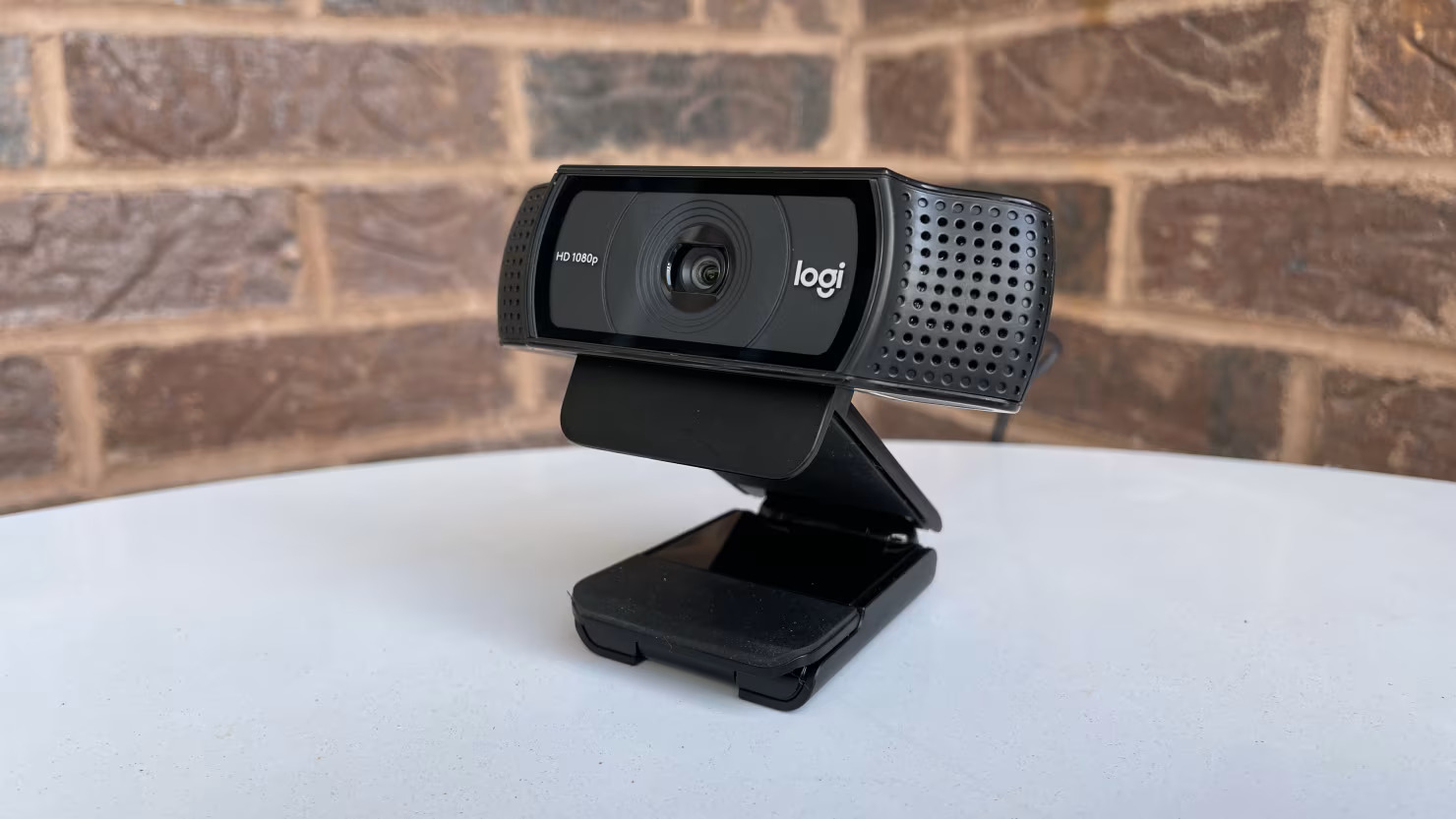
A webcam can make the difference between looking clear and professional on a video call and appearing blurry, poorly lit or badly framed. For businesses, BPOs, call centres and remote teams, that difference matters because video meetings are often part of everyday communication.
The good news is that you do not necessarily need the most expensive camera available. The right webcam depends on how it will be used, where it will be installed and what your organisation expects from its video calls.
Table of Contents
ToggleTable of Contents
- What makes a good webcam for meetings?
- How much webcam resolution do you need?
- Why autofocus matters
- Choosing the right field of view
- Lighting and image quality
- Webcam microphones and audio
- Wired vs wireless webcams
- Compatibility with Teams, Zoom and Google Meet
- Choosing a webcam for BPOs and call centres
- 1080p vs 4K webcam comparison
- Common webcam-buying mistakes
- Best practices for better video meetings
- Future trends in business webcams
- Frequently Asked Questions
- Conclusion
What Makes a Good Webcam for Meetings?
A good meeting webcam produces a clear, natural-looking image without requiring complicated setup. It should also work reliably with your preferred video-conferencing platform. For business environments, resolution is only one part of the decision; autofocus, lighting, field of view, privacy and compatibility can be just as important.
A webcam is essentially the visual equivalent of a business headset. It needs to make communication easier rather than becoming another problem for employees or IT teams.
When comparing models, consider:
- Resolution
- Frame rate
- Autofocus
- Field of view
- Low-light performance
- Lens and sensor quality
- Built-in microphone
- USB connectivity
- Privacy shutter
- Compatibility with meeting platforms
- Mounting options
- Warranty and support
For example, Promallshop’s current webcam range includes models such as the Logitech C270, C310, C920, C922, C925e and Brio 4K, giving businesses several levels of capability to consider.
What Should Businesses Prioritise?
For an office with hundreds of employees, reliability and ease of deployment may matter more than having the highest possible resolution.
A procurement manager should therefore ask:
- What applications will employees use?
- What resolution do those applications actually require?
- Will employees work in bright offices or inconsistent lighting?
- Do they need a narrow or wide field of view?
- Is a built-in microphone sufficient?
- Does the webcam need a privacy shutter?
- Can IT deploy and support it easily?
This approach prevents businesses from paying for specifications employees may never use.
How Much Webcam Resolution Do You Need?
For most business video meetings, 1080p is the practical sweet spot. It provides Full HD video and is sufficient for professional-looking calls when the lighting and positioning are good. 4K offers substantially more image detail, but that does not automatically make every meeting better.
Microsoft recommends 720p or 1080p webcams for presentations and video presence in Teams. Google Meet lists a 1080p camera among the optimal requirements for users who want Full HD video and higher-quality visual effects.
720p
720p can work for basic video calls, especially where bandwidth, hardware or budget is limited.
However, organisations buying new equipment for professional use should consider whether saving money on resolution is worthwhile over the expected lifespan of the device.
1080p
1080p is generally the best starting point for:
- Office meetings
- Remote workers
- Customer-facing employees
- BPO teams
- Interviews
- Online presentations
- Training sessions
4K
4K is useful when you need:
- More image detail
- Digital cropping
- Higher-quality recordings
- Premium executive video
- Product demonstrations
- Content creation
- More flexibility when reframing video
For example, the Logitech Brio 4K supports 4K at 30 fps and 1080p at up to 60 fps.
The important point: buying a 4K webcam does not mean every meeting will appear in 4K. The meeting platform, internet connection, computer and configuration can all affect the final video experience.
Why Does Autofocus Matter?
Autofocus keeps the subject sharp when the distance between the camera and person changes. This is particularly useful for employees who move slightly during presentations or meetings. For fixed desk positions, autofocus may be less critical, but it remains a useful feature for business users.
Imagine an employee holding a document up to the camera during a presentation. A webcam with effective autofocus can adjust between the employee and the document instead of leaving the important object blurry.
Premium business webcams often combine autofocus with automatic lighting correction. Logitech’s Brio 4K, for instance, includes autofocus and RightLight 3 automatic light correction.
When Do You Need Autofocus?
Autofocus is especially useful for:
- Trainers
- Sales representatives
- Presenters
- Executives
- Teachers
- Product demonstrators
- Employees who frequently move during calls
For a fixed-position call-centre employee, other features may offer more value.
Choosing the Right Field of View
Field of view, or FOV, determines how much of the scene the camera captures. A narrow FOV focuses attention on one person, while a wider FOV captures more of the surrounding environment or multiple people.
For individual meetings, an extremely wide camera can sometimes show unnecessary background. For group meetings, however, a wider view can be useful.
As an example, the Logitech Brio 4K provides 65°, 78° and 90° diagonal field-of-view options. Logitech describes 65° as suitable for a focused head-and-shoulders view, while wider settings capture more of the room.
Which FOV Should You Choose?
Use case | Suggested FOV |
Individual employee | Around 60–70° |
Executive desk | Around 65–78° |
Small group | Around 78–90° |
Training room | Wide-angle or dedicated conference camera |
The right choice depends on the physical distance between the webcam and the people being recorded.
Lighting and Image Quality
A high-resolution webcam cannot completely fix poor lighting. If someone sits with a bright window directly behind them, even an expensive camera may struggle to produce a flattering image.
Microsoft recommends positioning the webcam at eye level and lighting the face from the front while avoiding strong backlighting, shadows and glare.
Look for Automatic Light Correction
Automatic light correction can be useful in offices where lighting conditions change throughout the day.
This matters particularly in environments where:
- Employees sit near windows
- Lighting varies between workstations
- Teams work different shifts
- Employees work from home
- Meeting rooms have inconsistent lighting
A simple desk light can sometimes improve image quality more than upgrading from one resolution tier to another.
What About Webcam Microphones?
Many webcams include built-in microphones, but a built-in microphone is not always the best choice for professional communication.
A webcam microphone can be perfectly adequate for casual meetings. However, BPOs, call centres and customer-facing teams often benefit from a dedicated headset because the microphone sits much closer to the speaker’s mouth.
This is where your webcam and headset should be considered as one communication setup.
For example, Promallshop’s headset range includes wired, Bluetooth and wireless options from brands such as Logitech, Dell and VT. Its catalogue also includes models with noise-cancelling microphones and wireless connectivity.
A webcam handles your video; a professional headset can handle your voice and listening experience.
For teams operating in noisy environments, that distinction can be important.
Wired vs Wireless Webcams
Unlike headsets, webcams are overwhelmingly used as wired USB peripherals. This is usually an advantage in business environments because USB provides a straightforward connection and avoids battery management.
When selecting a webcam, check whether your computers use USB-A, USB-C or both.
Why USB Plug-and-Play Matters
IT teams managing large deployments want equipment that employees can connect and use without extensive configuration.
Microsoft’s Teams certification programme is designed to identify peripherals that provide a tested experience and plug-and-play functionality with Teams.
Before purchasing in bulk, however, test the exact webcam model with your organisation’s computers and software.
Compatibility With Teams, Zoom and Google Meet
A webcam should not be judged only by its camera specifications. It also needs to work properly with the software your employees use.
Common platforms include:
- Microsoft Teams
- Zoom
- Google Meet
- Cisco Webex
- Skype
- Browser-based meeting platforms
Google Meet supports both built-in webcams and external USB cameras. Microsoft also maintains a certification programme covering personal video peripherals such as webcams.
Why Certification Matters
For enterprise procurement, certification can reduce uncertainty.
A certified device has generally been tested against the relevant platform’s requirements. That does not mean certification is mandatory for every webcam, but it can make procurement easier when standardising equipment across a large organisation.
How to Choose a Webcam for BPOs and Call Centres
BPO and call-centre environments have different priorities from home users. A procurement decision should consider the entire workforce rather than the specifications of one employee’s desk.
For a large deployment, prioritise:
- Consistent video quality
- Easy installation
- Compatibility with existing computers
- Reliable USB connectivity
- Privacy features
- Warranty and support
- Availability of replacement units
- Total cost of ownership
Example: A 200-Employee BPO
Suppose a BPO wants to equip 200 employees for video-enabled meetings.
Buying the most expensive 4K webcam for every workstation may sound impressive, but it may not provide the best return.
If employees mainly participate in internal Teams meetings and customer calls, a reliable 1080p webcam with good autofocus and lighting performance could be the more sensible standard.
The organisation could reserve higher-end 4K models for:
- Management
- Sales teams
- Trainers
- Marketing
- Executives
- Employees who record video
This creates a tiered procurement strategy instead of applying one expensive specification to everyone.
1080p vs 4K Webcam: Which Is Better?
The better choice depends on what the webcam will actually be used for. 1080p is usually sufficient for everyday business meetings, while 4K is more valuable when businesses need additional detail, cropping flexibility, recording quality or premium presentation.
Feature | 1080p | 4K |
Video detail | Very good | Excellent |
Typical meeting use | Excellent | More than necessary for many users |
Bandwidth demand | Lower | Higher |
Processing demand | Lower | Higher |
Cost | Usually lower | Usually higher |
Recording | Good | Excellent |
Digital cropping | Limited | More flexibility |
BPO deployment | Strong choice | Best for selected roles |
The important lesson is that higher resolution is not automatically better value.
Common Webcam-Buying Mistakes
1. Choosing Based Only on Megapixels
A large megapixel number does not guarantee better meeting video.
Lens quality, sensor performance, image processing and lighting can all influence the final result.
2. Buying 4K for Everyone
4K can be excellent, but not every employee needs it.
For a large deployment, consider different webcam tiers.
3. Ignoring Lighting
A premium webcam in a poorly lit office may still produce disappointing video.
4. Ignoring the Computer’s Ports
A webcam is useless if employees cannot conveniently connect it to their computers.
5. Forgetting Privacy
Look for physical privacy shutters or covers where appropriate.
The Logitech Brio 4K, for example, includes an attachable privacy shutter.
6. Treating Video and Audio as the Same Problem
A webcam can produce excellent video while its microphone remains unsuitable for a noisy office.
For customer-facing teams, pair the webcam with a suitable business headset.
Best Practices for Better Video Meetings
The webcam is only one part of the setup.
Follow these practices:
- Position the camera approximately at eye level.
- Keep your face well lit from the front.
- Avoid placing a bright window directly behind you.
- Keep the camera lens clean.
- Frame your head and shoulders naturally.
- Use a suitable field of view.
- Keep your background reasonably uncluttered.
- Test the webcam before important meetings.
- Use a dedicated headset in noisy environments.
- Keep webcam firmware and relevant software updated where applicable.
Microsoft’s own guidance similarly recommends 720p or 1080p webcams, eye-level positioning and front-facing lighting for professional video presence.
How Much Should You Spend on a Business Webcam?
There is no single price that suits every business. The correct budget depends on the employee’s role, required image quality, deployment size, support requirements and available hardware.
For procurement teams, the better question is not:
“What is the cheapest webcam?”
It is:
“What webcam provides the required quality and reliability at the lowest reasonable total cost of ownership?”
For example, Promallshop currently lists webcams ranging from entry-level Logitech models to higher-end 4K and conference-camera solutions.
For organisations purchasing multiple units, it is also worth asking about bulk pricing, availability, warranty and deployment support rather than comparing retail prices alone
What Are the Benefits of a Good Business Webcam?
A suitable business webcam can provide:
- Clearer employee communication
- Better customer-facing meetings
- More professional presentations
- Easier remote collaboration
- Consistent video quality
- Better training sessions
- Improved executive video presence
- Easier standardisation across teams
However, a webcam cannot compensate for every problem. Poor lighting, weak internet connectivity, outdated computers and poor microphone placement can still affect the meeting experience.
What Are the Disadvantages of an External Webcam?
External webcams also have some drawbacks.
They can:
- Add another device to manage
- Require additional USB ports
- Increase procurement costs
- Need physical mounting
- Require replacement or support
- Create more equipment to track across a large workforce
For organisations that already have good built-in cameras, an external webcam should therefore solve a specific problem rather than simply add another device.
Future Trends in Business Webcams
Business webcams are increasingly moving beyond basic video capture.
Features such as automatic framing, intelligent lighting, HDR, advanced microphones and software-based image enhancement are becoming more common.
For example, Logitech’s MX Brio 705 combines 4K video, autofocus, adjustable FOV, RightLight 5 and dual beamforming microphones.
For businesses, this means future procurement decisions may focus less on raw resolution and more on how intelligently the camera handles real-world meeting conditions.
That is particularly relevant for hybrid teams, where employees may move between offices, homes and shared workspaces.
Conclusion
Choosing the right webcam for meetings is less about buying the camera with the biggest number on the box and more about matching the technology to the job.
For most employees, a dependable 1080p webcam with good autofocus, sensible framing and reliable light correction is enough. For executives, presenters, content teams and other premium users, a 4K webcam can provide additional flexibility.
For BPOs, call centres and IT departments, the decision should go one step further. Consider compatibility, deployment, privacy, support, availability and total cost of ownership.
And remember that video is only half of a good virtual meeting. Pairing the right webcam with a professional headset can create a much more complete communication setup.
Promallshop currently offers both webcam and business headset options, making it possible to build a meeting setup around the actual needs of your team.
Frequently Asked Questions
The best webcam depends on the user's needs. For most business meetings, a reliable 1080p webcam with autofocus and good lighting performance is sufficient. Higher-end users may benefit from 4K.
Yes. 1080p is enough for most professional video meetings and provides Full HD quality. It offers a good balance between image quality, bandwidth usage and cost.
It can be worthwhile for executives, presenters, content creators and users who need high-quality recordings or digital cropping. For ordinary internal meetings, 1080p is usually sufficient.
Autofocus is useful if you move around, present documents or demonstrate products. For an employee sitting in a fixed position, it is helpful but less essential.
A narrower field of view is generally suitable for one person, while a wider FOV is better for groups or larger spaces. Around 65°–70° can work well for individual head-and-shoulders framing.