


Table of Contents
ToggleIntroduction
Workplace collaboration has changed significantly. Teams now move between face-to-face meetings, hybrid sessions, presentations, brainstorming workshops and remote discussions, often using several devices to get one meeting done.
A conventional display can show information, but an interactive display can turn that information into something people can work with.
Instead of simply looking at a presentation, employees can write on the screen, annotate documents, share content wirelessly, compare ideas and collaborate with colleagues in the same room or remotely. That makes interactive displays increasingly relevant to modern meeting rooms, boardrooms, training spaces and collaborative offices.
Table of Contents
- Introduction
- What Is an Interactive Display?
- Why Interactive Displays Matter in the Workplace
- 8 Interactive Display Features That Improve Collaboration
- Interactive Displays and Hybrid Meetings
- Interactive Display vs Traditional Display
- How to Choose an Interactive Display for Your Workplace
- Common Mistakes to Avoid
- Best Practices for Using Interactive Displays
- Pros and Cons of Interactive Displays
- Future Trends in Interactive Display Technology
- Conclusion
- FAQs
What Is an Interactive Display?
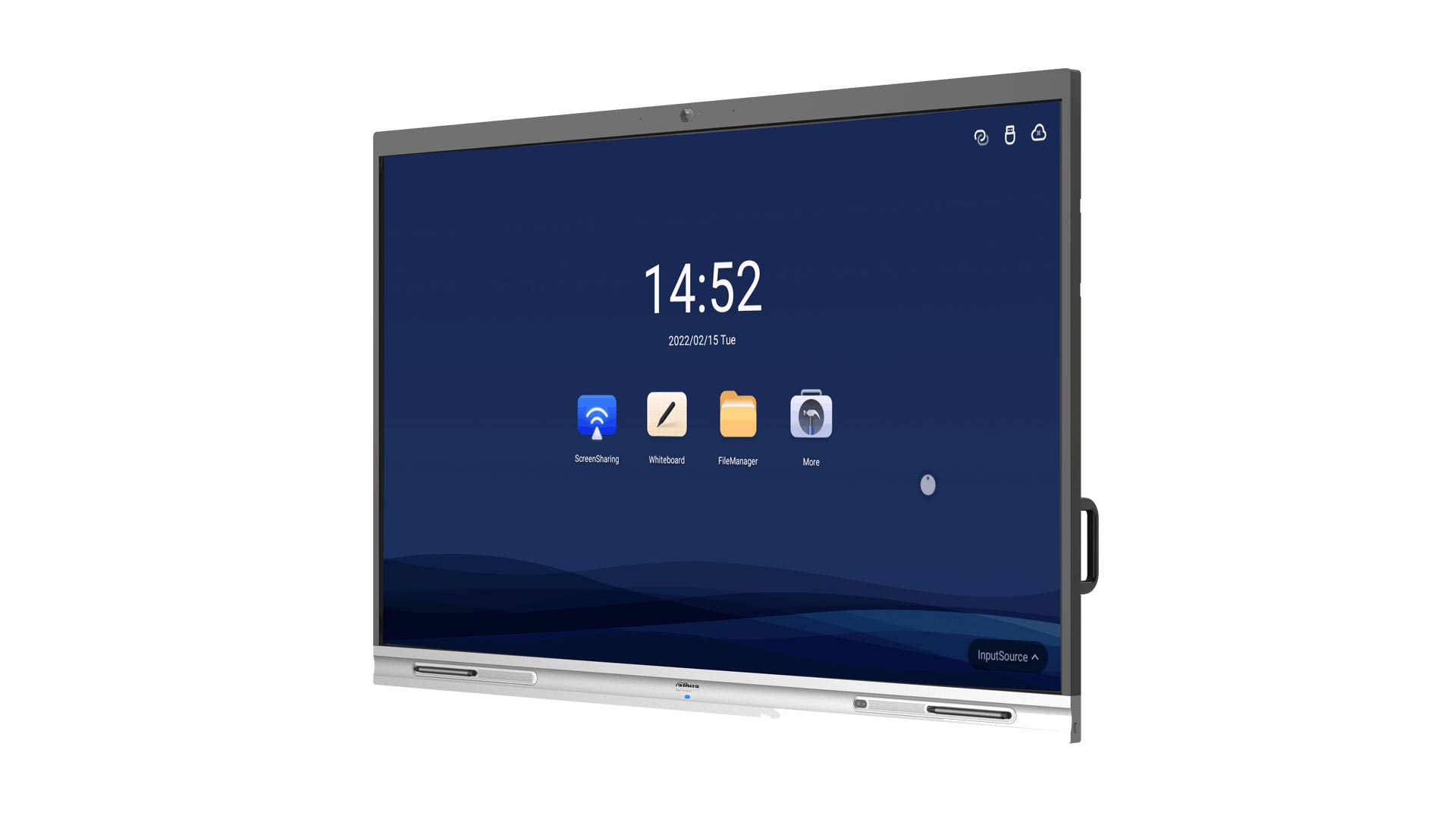
An interactive display is a large touchscreen that allows users to interact directly with digital content. Depending on the model and software, employees can write, draw, annotate documents, share screens, browse content, run applications and collaborate with other participants directly from the display.
Unlike a standard TV or commercial monitor, the display becomes an active part of the meeting.
Microsoft, for example, supports interactive touchscreens with Whiteboard in Teams Rooms. When a compatible touch display is connected, participants can interact with the digital whiteboard instead of simply viewing it.
Promallshop’s current display range includes interactive solutions designed for meeting rooms, collaboration spaces, classrooms and training environments, including models from Samsung, MAXHUB, Sharp, SMART and other manufacturers.
What makes an interactive display different?
The key difference is interaction.
A traditional display primarily answers the question, “What should everyone see?”
An interactive display adds another question:
“What can everyone do with what they see?”
That distinction matters in meetings where people need to brainstorm, make changes, explain concepts or work on information together.
Why Interactive Displays Matter in the Workplace
Interactive displays can make meetings more participatory by giving people a shared digital workspace. Instead of passing a laptop around or asking one person to control the presentation, participants can interact with the content themselves.
The greatest value, however, does not come from the touchscreen alone. It comes from combining touch, collaboration software, connectivity and presentation capabilities into one workflow.
From presentation to participation
Imagine a sales team reviewing a proposal.
With a traditional screen, one person presents while everyone else watches. With an interactive display, the team can highlight figures, annotate the proposal, move ideas around and make decisions directly on the shared content.
The display becomes a collaborative workspace rather than a passive screen.
Quick facts
Feature | Workplace benefit |
Multi-touch | Allows multiple users to interact |
Digital whiteboard | Supports brainstorming and idea development |
Wireless sharing | Makes presenting from different devices easier |
Annotation | Allows teams to mark up content in real time |
Split-screen | Enables side-by-side comparison |
USB-C | Simplifies device connection |
Video-conferencing support | Connects in-room and remote participants |
Device management | Helps IT teams manage displays remotely |
8 Interactive Display Features That Improve Collaboration
The most useful interactive display is not necessarily the one with the longest specification sheet. It is the one whose features solve real workplace problems.
Here are the features organisations should pay close attention to.
1. Multi-Touch Interaction
Multi-touch allows more than one person to interact with the display at the same time. This is particularly useful during brainstorming, design reviews, planning sessions and training.
For example, two employees could move different objects on a digital workspace while another participant adds notes.
Some current professional displays support dozens of simultaneous touch points. Samsung’s WAFX-P, for example, supports up to 50-point multi-touch when running Windows through an OPS or external PC configuration.
The important point for buyers is not simply the maximum number of touch points. Ask whether the touch experience is responsive enough for the way your team actually works.
2. Digital Whiteboarding
A digital whiteboard gives teams a shared space for brainstorming, planning and problem-solving.
Instead of writing ideas on a physical board and photographing them at the end of a meeting, teams can work digitally and save or share the resulting content.
Microsoft Whiteboard can be used on compatible Teams Rooms devices, with interactive functionality available through supported touch displays.
This can be especially useful for:
- Brainstorming sessions
- Project planning
- Strategy meetings
- Design reviews
- Training
- Process mapping
- Workshops
3. Wireless Screen Sharing
Wireless screen sharing allows employees to present content from laptops, tablets or smartphones without repeatedly connecting cables.
This sounds like a small convenience, but it can significantly improve meeting flow.
Consider a meeting where four departments need to present. Instead of passing one laptop around or changing HDMI connections repeatedly, participants can share their screens directly when it is their turn.
Samsung’s current WAFX-P series, for example, supports screen sharing from multiple devices across operating systems including Windows, Android and iOS.
For IT managers, compatibility is particularly important. Check which operating systems, protocols and security controls the display supports before deployment.
4. Real-Time Annotation
Annotation allows participants to write directly over presentations, documents, webpages or other displayed content.
This is useful when the goal of the meeting is not simply to view information but to work on it.
For example, an architect could mark changes on a drawing. A manager could highlight figures in a report. A project team could identify risks on a process diagram.
Samsung’s WAFX-P includes an annotation function that lets users write on-screen without first taking a screenshot or leaving the displayed content.
The best implementations make annotation quick enough that it does not interrupt the conversation.
5. Split-Screen and Multi-Window Functionality
Meetings often require participants to compare information.
A split-screen feature allows teams to place two or more pieces of content beside each other.
For example:
Left: Current sales performance
Right: Sales target
Or:
Left: Existing process
Right: Proposed process
This is particularly useful during reviews because participants do not have to switch repeatedly between different windows.
Modern interactive displays can offer multi-window functionality, although the exact number of simultaneous applications depends on the display’s hardware and operating environment. Samsung’s WAFX-P, for instance, supports multiple windows through its multi-window functionality.
6. Easy Device Connectivity
An interactive display should not create another technology problem for the IT department.
Connectivity options such as USB-C, HDMI, USB and wireless networking can make it easier to connect laptops and other devices.
USB-C is particularly useful when supported because a single connection can potentially handle video, touch control and charging. Samsung’s WAFX-P, for example, provides a 3-in-1 USB-C connection supporting touch control, screen connection and device charging.
Before purchasing, however, confirm exactly what each port supports. A USB-C port does not automatically mean that every device will provide the same functionality.
7. Video-Conferencing Integration
Hybrid meetings require more than a large touchscreen.
The display should work effectively with the organisation’s video-conferencing environment, whether that involves Microsoft Teams, Zoom or another platform.
Microsoft Teams Rooms is designed around integrated meeting experiences that allow participants to collaborate and share content in real time.
An interactive display can complement this environment by giving people in the room a shared surface for whiteboarding, annotation and content interaction.
The result is a meeting where remote participants are not merely watching the room. They can become part of the collaborative workflow.
8. Remote Management and IT Administration
This feature is easy to overlook during procurement.
An organisation with one interactive display may be able to manage it manually. An organisation with 20 meeting rooms has a different problem.
IT teams need to think about:
- Software updates
- Application management
- Device configuration
- Network access
- Security
- Troubleshooting
- Usage monitoring
- Remote administration
Some professional displays offer device management capabilities for this reason. Samsung’s WAF series, for example, includes device-management functionality intended to support remote administration.
For larger deployments, manageability can be just as important as screen resolution.
Interactive Displays and Hybrid Meetings
Interactive displays can make hybrid meetings more engaging by giving people in the physical room a shared digital workspace while remote participants connect through the conferencing platform.
The important consideration is integration.
A display by itself does not solve hybrid collaboration. The camera, microphone, speakers, conferencing platform, network and display need to work together.
Microsoft’s Teams Rooms guidance specifically recognises interactive collaboration devices such as touchscreen front-of-room displays as part of the collaborative meeting environment.
A practical hybrid meeting example
Suppose a project team in Lagos is meeting with colleagues in Accra.
The team can:
- Join the video meeting.
- Share a project document.
- Open a digital whiteboard.
- Annotate the document on the interactive display.
- Invite remote participants to contribute.
- Save the resulting notes for later use.
That is much closer to a shared workspace than a conventional presentation.
Interactive Display vs Traditional Display
An interactive display and a traditional commercial display can both show high-quality content. The major difference is what users can do with that content.
Capability | Traditional display | Interactive display |
Display presentations | ✓ | ✓ |
Touch interaction | Usually no | ✓ |
Digital whiteboarding | Limited | ✓ |
Direct annotation | Limited | ✓ |
Multi-user interaction | No | Depending on model |
Wireless sharing | Model dependent | Common |
Video conferencing | Requires additional equipment/software | Often designed to integrate |
Brainstorming | External tools required | Built-in or supported |
Interactive training | Limited | ✓ |
Therefore, an interactive display makes more sense when the organisation needs participation, not simply visual presentation.
How to Choose an Interactive Display for Your Workplace
The right display depends on the room, number of users, applications and existing IT environment.
1. Start with the room
Consider:
- Room dimensions
- Viewing distance
- Number of participants
- Seating arrangement
- Wall or stand mounting
- Ambient lighting
A larger screen is not automatically better. The display should be large enough for everyone to comfortably read content without making the room feel crowded.
2. Check the touch capability
Look beyond the word “touch.”
Ask:
- How many simultaneous touch points are supported?
- Is palm rejection available?
- How responsive is the screen?
- Can multiple people write simultaneously?
- Does touch work with Windows?
- Does it support annotation across applications?
3. Evaluate connectivity
Make a list of the devices employees currently use.
If your organisation relies heavily on Windows laptops, USB-C and HDMI connectivity may be particularly important. If employees regularly use mobile devices, wireless sharing becomes more valuable.
4. Consider software compatibility
The display should fit into your existing collaboration ecosystem.
Check compatibility with the platforms your organisation already uses rather than buying a display first and solving integration later.
5. Think about IT management
For one meeting room, this may not be a major issue.
For a multi-office deployment, it becomes critical.
Choose solutions that make it easier to update, configure and monitor devices remotely.
6. Consider the complete room
The display is only one component.
A strong meeting-room setup may also require:
- Camera
- Microphones
- Speakers
- Video-conferencing software
- Network connectivity
- Mounting equipment
- Appropriate cables
- Room-control equipment
The best result comes from designing the room as a complete system.
Common Mistakes to Avoid
Buying an interactive display based only on screen size or resolution is one of the biggest mistakes organisations can make.
1. Choosing specifications over workflow
A display can have excellent resolution and still be a poor collaboration tool.
Think about how employees will actually use it.
2. Ignoring compatibility
A display that does not integrate properly with your existing laptops, operating systems and collaboration software can create frustration.
3. Forgetting network requirements
Wireless collaboration depends on reliable network infrastructure.
Before deployment, IT teams should test network coverage, access policies and security requirements.
4. Treating the display as a standalone product
A successful meeting room requires more than a screen.
Camera placement, microphones, speakers, software and room layout all affect the experience.
5. Ignoring training
Employees may not automatically use advanced features simply because they are available.
A short demonstration can help teams understand how to whiteboard, annotate, share content and save meeting outputs.
Best Practices for Using Interactive Displays
Once the hardware is installed, organisations should establish simple usage standards.
Before the meeting
- Test connectivity.
- Check the conferencing platform.
- Open required documents.
- Confirm the display is updated.
- Make sure remote participants can connect.
During the meeting
- Use the display as a shared workspace.
- Encourage participants to annotate ideas.
- Avoid switching between unnecessary applications.
- Keep remote participants involved.
- Save important notes as the meeting progresses.
After the meeting
- Save whiteboard content.
- Share annotated documents.
- Disconnect personal accounts where necessary.
- Record follow-up actions.
- Report technical issues promptly.
The goal is to make the technology disappear into the workflow. Participants should focus on the meeting, not on figuring out the equipment.
Pros and Cons of Interactive Displays
Pros | Cons |
Encourages active participation | Higher initial cost than standard displays |
Supports digital whiteboarding | Requires some user training |
Enables direct annotation | More features mean more configuration |
Supports wireless presentation | Network quality can affect wireless functions |
Useful for hybrid collaboration | Compatibility must be checked |
Can reduce reliance on separate tools | Large displays require suitable room space |
Supports multiple meeting scenarios | IT teams may need additional management processes |
The disadvantages are manageable when organisations evaluate the display as part of a complete workplace technology strategy.
Future Trends in Interactive Display Technology
Interactive displays are becoming more capable as workplace collaboration becomes increasingly digital.
One important direction is the integration of AI into the display experience.
For example, newer Samsung interactive displays include AI-assisted handwriting recognition and search functions.
Other developments include:
- Better handwriting recognition
- More advanced digital whiteboarding
- Improved wireless collaboration
- AI-assisted meeting workflows
- Better integration with conferencing platforms
- Remote device management
- More powerful onboard operating systems
- Greater support for hybrid collaboration
- Improved accessibility features
However, organisations should avoid buying technology simply because it includes AI.
The better question is:
Does the feature solve a genuine workplace problem?
If it saves time, improves collaboration or simplifies a repetitive task, it deserves consideration. Otherwise, it may simply add complexity.
Conclusion
An interactive display can turn a meeting room from a place where people look at information into a space where they work with information together.
Features such as multi-touch, digital whiteboarding, wireless screen sharing, annotation, split-screen functionality, device connectivity, video-conferencing integration and remote management can make collaboration more natural and productive.
However, the best interactive display is not necessarily the most expensive or feature-packed model. It is the one that fits the organisation’s meeting spaces, devices, software, users and collaboration requirements.
For businesses evaluating interactive displays in Nigeria and across West Africa, the starting point should be the workplace challenge—not the specification sheet. Once the challenge is clear, the right combination of display size, touch capability, connectivity, collaboration software and room technology becomes much easier to determine.
FAQs
An interactive display is a large touchscreen that allows users to directly interact with digital content. It can support writing, annotation, presentations, digital whiteboarding, screen sharing and other collaborative activities.
It gives employees a shared digital workspace where they can present, annotate, brainstorm, compare information and interact with content. This encourages more active participation than a conventional display.
Important features include multi-touch, digital whiteboarding, wireless screen sharing, annotation, device connectivity, video-conferencing compatibility, split-screen functionality and remote device management.
Yes, many interactive displays support multi-touch interaction. However, the number of simultaneous users or touch points varies by model, so organisations should check the manufacturer's specifications before purchasing.
Yes. When integrated with video-conferencing software, cameras, microphones and appropriate network infrastructure, interactive displays can provide a shared workspace for both in-room and remote participants.