


Table of Contents
ToggleIntroduction
Modern meeting rooms are no longer limited to one computer, one conferencing platform, and a fixed way of working. Employees may arrive with Windows laptops, MacBooks, Chromebooks, or other devices and need to join meetings using Microsoft Teams, Zoom, Google Meet, or another platform.
This is where a BYOD meeting room becomes useful.
Instead of forcing everyone to use a dedicated room computer, BYOD allows the person leading the meeting to bring their own device and connect it to the room’s professional audio and video equipment.
For IT Managers, AV professionals, Facilities Managers, Procurement Managers, and business executives, BYOD can provide a practical way to make meeting spaces more flexible without sacrificing the quality of the room’s AV system.
Table of Contents
- Introduction
- What Is BYOD in a Meeting Room?
- How Does a BYOD Meeting Room Work?
- What Equipment Does a BYOD Meeting Room Need?
- BYOD vs BYOM: What’s the Difference?
- Benefits of a BYOD Meeting Room
- Disadvantages and Challenges
- Wired vs Wireless BYOD
- How to Set Up a BYOD Meeting Room
- BYOD Meeting Room Security Best Practices
- Is BYOD Better Than a Dedicated Teams or Zoom Room?
- Best Practices for Businesses
- How Much Does a BYOD Meeting Room Cost?
- How Promallshop Products Can Fit Into a BYOD Strategy
- Common BYOD Meeting Room Mistakes
- The Future of BYOD Meeting Rooms
- Conclusion
- FAQs
What Is BYOD in a Meeting Room?
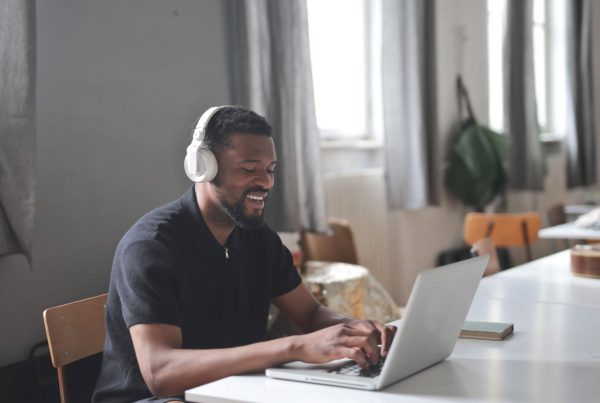
BYOD stands for Bring Your Own Device. In a meeting room, it means allowing a user to connect their personal or company laptop to the room’s display, camera, microphone and speakers so they can conduct a meeting using their preferred software.
Think of a BYOD meeting room as a bridge between a person’s laptop and the professional equipment already installed in the room.
For example, an employee might walk into a conference room with a laptop, open Microsoft Teams, connect the laptop to the room system, and immediately use the room’s camera and speakers.
The same person could instead open Zoom or Google Meet.
The room does not necessarily dictate which platform they must use. The user’s device becomes the main meeting computer while the room provides the professional AV experience.
Quick Facts About BYOD
Feature | BYOD Meeting Room |
Main computer | User’s laptop or device |
Meeting platform | User’s preferred platform |
Camera | Room camera |
Microphone | Room microphone |
Speakers | Room speakers/video bar |
Display | Meeting-room display |
Connection | USB, USB-C, HDMI or wireless |
Best suited for | Flexible and mixed-platform meetings |
BYOD is particularly valuable in organizations where different teams, clients, partners, or visitors use different conferencing platforms.
How Does a BYOD Meeting Room Work?
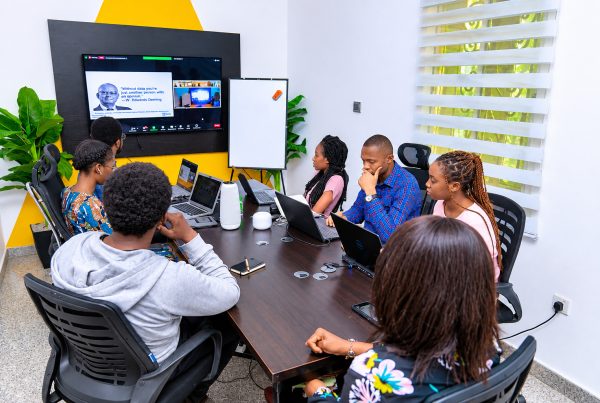
A BYOD meeting room works by connecting the user’s laptop to the room’s AV equipment. Once connected, the laptop can use the room’s camera, microphone, speakers and display while the meeting application continues running on the user’s device.
The basic process is straightforward:
- The user enters the meeting room.
- They connect their laptop to the room system.
- The laptop detects the available AV equipment.
- The user opens Microsoft Teams, Zoom, Google Meet, or another application.
- They select the room camera, microphone and speakers.
- The meeting begins using the room’s professional equipment.
In a simple setup, the connection may involve a USB-C cable.
More advanced rooms can use a dedicated BYOD connectivity system that reduces the number of cables and adapters required.
A Simple BYOD Example
Imagine that a company has a conference room with a large display and a professional conference camera.
A visitor arrives with a MacBook and needs to host a Zoom meeting.
Instead of asking the visitor to sign into a company-owned meeting-room computer, the visitor connects their MacBook to the room’s BYOD system.
The laptop launches Zoom.
The room camera captures the participants.
The room microphone captures their voices.
The room speakers reproduce the remote participants’ audio.
The display shows the meeting.
The visitor remains in control of the meeting from their own laptop.
That is BYOD in practice.
What Equipment Does a BYOD Meeting Room Need?
A BYOD meeting room typically needs a display, camera, microphone, speakers, connectivity system, compatible meeting software and reliable network infrastructure. The exact equipment depends on the room size, number of participants, conferencing platforms and level of integration required.
1. Laptop or User Device
The laptop is the central device in a BYOD setup.
It runs the conferencing application and usually controls the meeting.
The organization should consider compatibility with common operating systems, ports and connectivity standards.
USB-C is increasingly useful because a single connection can potentially handle multiple functions, depending on the equipment.
2. Conference Camera
A professional conference camera gives remote participants a better view of the people inside the room.
Depending on the room, the camera may provide:
- Wide-angle video
- Automatic framing
- Speaker tracking
- Digital or optical zoom
- High-resolution video
- Multiple camera views
For example, an all-in-one video bar can combine the camera, microphone and speakers in one device.
3. Microphones
Microphones are just as important as cameras.
A meeting can survive slightly imperfect video, but poor audio can quickly make a conversation frustrating.
The right microphone setup depends on room size and seating arrangement.
A small huddle room may only need the microphones built into a video bar. A large boardroom may require additional microphones positioned around the table.
4. Speakers
The room also needs a way to reproduce remote participants’ voices.
This can be provided by:
- A video bar
- Conference speakers
- Dedicated room speakers
- Professional AV systems
The goal is even and intelligible audio throughout the room.
5. Meeting Room Display
The display gives participants a shared view of the meeting.
It may show:
- Remote participants
- Shared presentations
- Documents
- Videos
- Dashboards
- Other meeting content
A BYOD room can use a conventional professional display, interactive display, or other compatible screen.
6. BYOD Connectivity
This is the part that connects the user’s device to the room.
Depending on the design, it may use:
- USB-C
- USB-A
- HDMI
- Wireless presentation
- Dedicated laptop-link hardware
A product such as Logitech Swytch is designed specifically to connect a laptop to meeting-room AV equipment through a simplified connection.
7. Network Infrastructure
Network infrastructure is easy to overlook.
However, modern meeting rooms may contain multiple networked cameras, microphones, controllers, displays and other AV devices.
For larger professional installations, managed AV switches can help IT teams organize and control network traffic.
The Yealink RCH80 PoE Network Switch, for example, is designed for professional AV over IP environments and provides Gigabit PoE ports, VLAN, QoS, access control and multicast management capabilities.
This does not make the RCH80 a BYOD device itself. Instead, it can support the network infrastructure behind a larger meeting-room deployment.
BYOD vs BYOM: What’s the Difference?
BYOD and BYOM are closely related, but they emphasize different things. BYOD means bringing your own device, while BYOM usually means bringing your own meeting platform or meeting experience and using the room’s AV equipment. In practice, the terms are sometimes used interchangeably.
BYOD | BYOM |
Bring Your Own Device | Bring Your Own Meeting |
Focuses on the user’s laptop/device | Focuses on the user’s meeting experience |
Laptop often runs the meeting | User chooses their preferred meeting platform |
Uses room AV equipment | Uses room AV equipment |
Useful for flexible room access | Useful for platform flexibility |
For most business users, the important idea is simple: the user should be able to walk into the room, connect their device and use the room’s professional equipment without fighting the technology.
Benefits of a BYOD Meeting Room
The biggest benefit of a BYOD meeting room is flexibility. Users can run meetings from their own devices and preferred applications while still taking advantage of professional room equipment. This can simplify collaboration, especially in organizations that use multiple conferencing platforms.
1. Platform Flexibility
Employees and guests may use Microsoft Teams, Zoom, Google Meet, Webex, or another platform.
BYOD can reduce the need to build every room around only one application.
2. Easier Guest Meetings
Imagine a client arriving with their own laptop.
Instead of asking them to learn an unfamiliar room system, the organization can provide a simple connection to the room’s AV equipment.
That can make meetings smoother for external participants.
3. Better Use of Existing Equipment
A company may already have a high-quality camera, display and audio system.
BYOD allows users to access those resources from their own laptops.
4. Reduced Platform Dependency
A room designed around one conferencing platform may create challenges when users need another service.
BYOD provides another layer of flexibility.
5. Familiar User Experience
Employees already know how their laptop and conferencing application work.
They do not necessarily need to learn a completely different computer interface every time they enter a meeting room.
6. Useful for Hybrid Work
As organizations continue to support hybrid teams, meeting rooms need to accommodate people working from different locations.
A good BYOD setup can make it easier to move between in-office and remote collaboration.
Disadvantages and Challenges of BYOD?
BYOD is flexible, but it is not automatically simpler or more secure. Different laptops, operating systems, cables, drivers, permissions and conferencing applications can create support challenges. Organizations need clear standards and good room design to make BYOD reliable.
Common challenges include:
- Different laptop ports
- Missing adapters
- Outdated drivers
- USB permission problems
- Inconsistent meeting applications
- Network restrictions
- Echo or microphone conflicts
- Users selecting the wrong audio device
- Security concerns
- Lack of centralized control
This is why BYOD should be treated as an IT and AV design decision, not simply a matter of putting a USB cable on a conference table.
Wired vs Wireless BYOD
Wired BYOD uses a physical connection between the user’s device and the room system, while wireless BYOD allows compatible devices to share content or connect without a physical cable. Wired setups are often predictable and reliable, while wireless systems can provide greater convenience and a cleaner user experience.
Wired BYOD | Wireless BYOD |
Physical USB/USB-C/HDMI connection | Wireless connection |
Generally predictable | More dependent on wireless environment |
Easy to understand | Convenient for users |
Requires cables | Less cable clutter |
Good for controlled environments | Good for flexible presentation |
Neither option is automatically better.
For an executive boardroom, a highly controlled wired connection may be preferable.
For a flexible collaboration space, wireless presentation may be more attractive.
Some organizations may choose to provide both.
How to Set Up a BYOD Meeting Room
Setting up a BYOD meeting room starts with understanding how the room will be used. IT and AV teams should determine room size, preferred conferencing platforms, required camera coverage, audio requirements, display needs, connectivity options and network requirements before purchasing equipment.
1. Define the Room’s Purpose
Ask:
- Is it a huddle room?
- A boardroom?
- A training room?
- A hybrid classroom?
- A client presentation room?
The answer determines the equipment required.
2. Choose the Display
Select a display appropriate for the room size and viewing distance.
A small huddle room does not necessarily require the same display as a large boardroom.
3. Choose the Camera
Consider:
- Room dimensions
- Seating arrangement
- Field of view
- Automatic framing
- Tracking requirements
- Video resolution
4. Design the Audio
Determine where microphones and speakers should be positioned.
Avoid placing microphones too far from participants.
Also consider echo cancellation and background noise.
5. Select the BYOD Connection Method
Decide whether the room will use:
- USB-C
- USB-A
- HDMI
- A dedicated laptop-link device
- Wireless presentation
- A combination of options
6. Plan the Network
Network planning becomes especially important when the room contains multiple IP-based AV devices.
IT teams should consider:
- Bandwidth
- VLANs
- QoS
- Device authentication
- Network segmentation
- Monitoring
- Access control
7. Test Different Devices
Do not test the room with only one company laptop.
Test representative Windows, macOS and other supported devices.
Also test different conferencing platforms.
8. Make the User Experience Simple
A technically impressive room can still fail if users cannot figure out how to start a meeting.
Provide simple instructions such as:
- Connect your laptop.
- Select the room camera.
- Select the room microphone.
- Select the room speakers.
- Start your meeting.
BYOD Meeting Room Security Best Practices
Security should be part of BYOD room design from the beginning. Organizations should separate guest access from internal resources, control network access, authenticate managed devices where appropriate, keep room equipment updated and avoid giving personal devices unnecessary access to corporate systems.
Use Network Segmentation
A BYOD device should not automatically receive unrestricted access to the corporate network.
Network segmentation can help isolate meeting-room and guest devices from sensitive business systems.
Control Guest Access
Visitors should receive only the access they need.
Guest networks, authentication controls and access policies can reduce unnecessary exposure.
Keep Equipment Updated
Cameras, room systems, network devices and associated software should receive appropriate firmware and security updates.
Protect Meeting Content
Users may share confidential presentations, financial information, customer records or internal documents.
The room should therefore be designed so that sensitive information is not accidentally displayed to the wrong audience.
Remove Unnecessary Access
A visitor should not need access to internal applications simply because they need to present a PowerPoint file.
Follow the principle of least privilege wherever possible.
Is BYOD Better Than a Dedicated Teams or Zoom Room?
BYOD is not universally better than a dedicated Teams Room or Zoom Room. A dedicated room system can provide a more controlled and consistent experience, while BYOD provides greater flexibility for users and platforms. The best option depends on the organization’s workflow, room type, IT strategy and meeting requirements.
BYOD Room | Dedicated Room System |
User brings laptop | Room has dedicated computing system |
Highly flexible | Highly controlled |
Supports varied workflows | Optimized for supported platforms |
Good for guests | Good for standardized meetings |
User often controls meeting | Room system controls meeting |
Potentially more device variation | Easier to standardize |
For organizations heavily invested in Microsoft Teams, dedicated Teams Rooms may make sense for important spaces.
However, if the organization frequently hosts external guests or uses multiple platforms, BYOD can be extremely valuable.
In many businesses, the best answer is actually a combination of both.
Best Practices for Businesses
A successful BYOD meeting room should prioritize simplicity, compatibility, security and consistency. The technology should work with the organization’s actual meeting habits rather than forcing employees to change how they collaborate simply because they entered a conference room.
Standardize the Room Experience
Use consistent equipment across similar rooms where possible.
If every conference room works differently, employees will spend more time troubleshooting than meeting.
Provide Clear Instructions
A small instruction card can eliminate many basic support requests.
Support Common Platforms
Test the platforms employees and customers actually use.
Do not assume that compatibility with one application automatically guarantees an identical experience with every other platform.
Keep Spare Adapters Available
Even modern laptops do not all have the same ports.
A small selection of approved adapters can prevent avoidable meeting delays.
Monitor Room Performance
For organizations with many rooms, centralized monitoring can help IT teams identify problems before users report them.
Design for the User
The best BYOD system is not necessarily the one with the longest list of features.
It is the one users can understand quickly.
How Much Does a BYOD Meeting Room Cost?
There is no single price for a BYOD meeting room because the cost depends on the room size, display, camera, microphones, speakers, connectivity hardware, networking and installation requirements. A basic huddle room can require far less equipment than a large boardroom or enterprise AV installation.
A practical way to estimate the budget is to divide the project into categories:
Component | Budget consideration |
Display | Size and resolution |
Camera | Coverage and AI features |
Microphones | Room size and participant count |
Speakers | Audio coverage |
BYOD connectivity | Wired or wireless |
Network | Switches and infrastructure |
Installation | Cabling and configuration |
Management | Monitoring and support |
For larger organizations, procurement teams should evaluate the total cost of ownership, not just the initial hardware price.
Maintenance, software, installation, support and future expansion can affect the real cost of the solution.
How Promallshop Products Can Fit Into a BYOD Strategy
A BYOD meeting room usually needs several components rather than one universal product. Promallshop’s video conferencing range includes conference cameras, video bars, wireless presentation equipment, displays and networking products that can contribute to a complete meeting-room solution.
For example, Logitech Swytch is specifically designed as a laptop link for meeting rooms. It can connect a compatible laptop to room AV equipment, allowing users to use the room’s display and USB-connected conference camera while running their preferred meeting software.
For a room that needs professional video and audio, a product such as the Logitech Rally Bar can provide an integrated camera, microphone and speaker solution.
For wireless content sharing, the MAXHUB Wireless Presentation Dongle can provide a plug-and-play approach to screen mirroring on compatible MAXHUB displays.
For larger AV deployments, networking also becomes important. The Yealink RCH80 PoE Network Switch is designed for professional AV over IP environments and provides managed networking features such as VLAN, QoS, access control and multicast management.
The important point is that these products serve different roles. A network switch is not a BYOD connector, while a wireless presentation dongle is not a complete video conferencing system.
The best room is built by matching each component to a specific requirement.


Common BYOD Meeting Room Mistakes
Many BYOD problems come from poor planning rather than defective equipment. The most common mistakes include choosing equipment without considering room size, ignoring network requirements, failing to test different laptops, providing too many connection steps and overlooking security.
1. Choosing Equipment Before Understanding the Room
A camera designed for a small meeting room may not work well in a large boardroom.
2. Assuming One Cable Solves Everything
A simple connection is valuable, but the entire AV chain must still be compatible.
3. Ignoring Audio
Organizations sometimes focus heavily on camera resolution while overlooking microphones and speakers.
Remote participants experience the meeting through both video and sound.
4. Forgetting Network Design
Modern AV systems can place significant demands on network infrastructure.
5. Making the System Too Complicated
If employees need a printed manual just to start a meeting, the design should probably be simplified.
6. Ignoring Security
BYOD devices should not automatically have unrestricted access to sensitive corporate resources.
The Future of BYOD Meeting Rooms
BYOD is likely to remain important as businesses continue using multiple collaboration platforms, flexible workspaces and mixed device environments. The next generation of meeting rooms will increasingly focus on interoperability, wireless connectivity, intelligent cameras, centralized management and simpler user experiences.
The technology is moving toward rooms that understand what users are trying to accomplish rather than simply providing a collection of separate devices.
Wireless connectivity is improving.
Cameras are becoming more intelligent.
Audio systems are using increasingly sophisticated processing.
Room-management platforms are providing more visibility for IT teams.
At the same time, businesses are becoming more conscious of interoperability.
A company may use Microsoft Teams internally but still need to host customers using Zoom or another platform.
That makes flexible room design increasingly useful.
The goal is not simply to create a room with more technology.
The goal is to create a room where technology gets out of the way of the meeting.
Conclusion
A BYOD meeting room gives employees and guests the freedom to use their own devices while still benefiting from professional conference-room equipment. When properly designed, it can make hybrid meetings more flexible, support multiple conferencing platforms and improve the experience for both local and remote participants.
However, BYOD is more than placing a USB cable on a conference table.
IT and AV teams need to consider room size, cameras, microphones, speakers, displays, connectivity, network infrastructure, security and user experience.
For organizations in Nigeria, Ghana, Côte d’Ivoire and other growing hybrid-work environments, a well-designed BYOD meeting room can provide a practical foundation for flexible collaboration.
The right approach is to start with how people actually use the room, then select technology that makes that workflow easier.
FAQs
BYOD means Bring Your Own Device. It allows a person to connect their own laptop or compatible device to the meeting room's camera, microphone, speakers and display.
The user connects their laptop to the room's AV system, opens their preferred conferencing application, selects the room's camera and audio devices, and starts the meeting.
A typical BYOD room needs a laptop, display, conference camera, microphones, speakers, connectivity hardware and reliable network infrastructure.
Yes. BYOD setups can be used with Microsoft Teams when the laptop and room peripherals are compatible. Microsoft also provides meeting-room functionality for BYOD scenarios.
Yes. Zoom supports BYOD functionality in compatible Zoom Rooms and allows a laptop to use room cameras, microphones and speakers.